
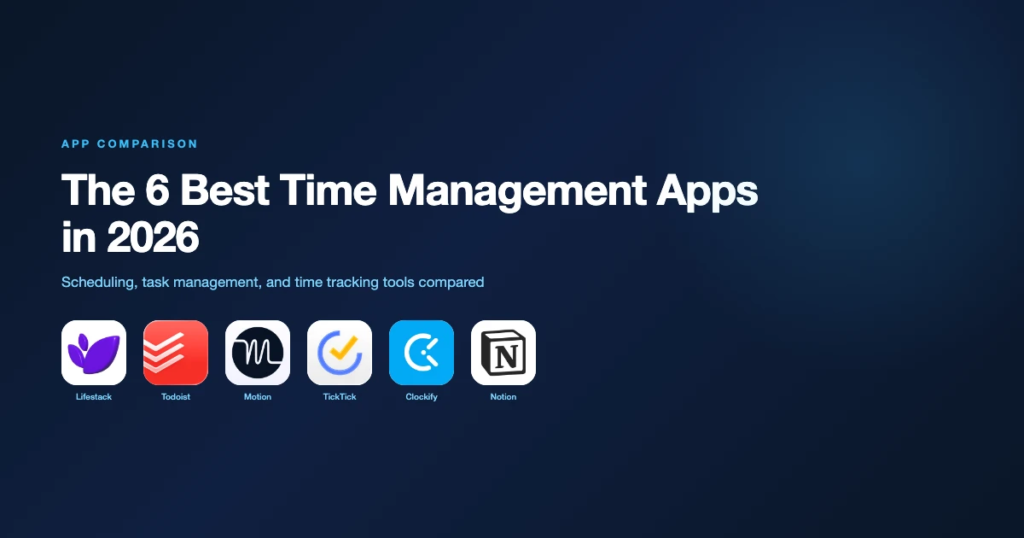

We have all had those chaotic workdays where you log on at 9:00 AM, jump frantically between back-to-back video calls, respond to a dozen urgent emails, and finally shut your laptop at 6:00 PM feeling completely exhausted.
Yet, when you sit back and ask yourself, “What did I actually accomplish today?”—the answer is depressing: almost nothing that actually mattered.
Managing your time sounds completely trivial until a normal Wednesday gets busy. You have project deadlines to hit, team meetings to attend, client calls to book, personal errands to manage, and three urgent requests in your inbox that you completely forgot about.
Before you realize what happened, your entire afternoon is gone, and you are left wondering where all those hours disappeared to.
This is exactly where a proper scheduling app steps in. But let us be completely clear right upfront: a scheduling app will not magically fix your bad work habits.
If you pack your calendar with fourteen meetings in a single day and refuse to say “no” to non-essential tasks, downloading a fancy app will just give you a more colorful view of your own burnout.
However, when used with a bit of common sense, a good scheduling tool does far more than just display a grid of dates. It acts as an energetic gatekeeper for your attention. It handles the mind-numbing administrative work of setting up calls, stops people from double-booking your lunch breaks, and protects real blocks of uninterrupted time so you can actually sit down and do focused work.
Let us cut through the glossy corporate marketing jargon and break down how scheduling software actually works in 2026, which platforms are genuinely worth your time, and how to build a routine that keeps you sane.
What Is a Scheduling Tool (And Why Do People Care)?
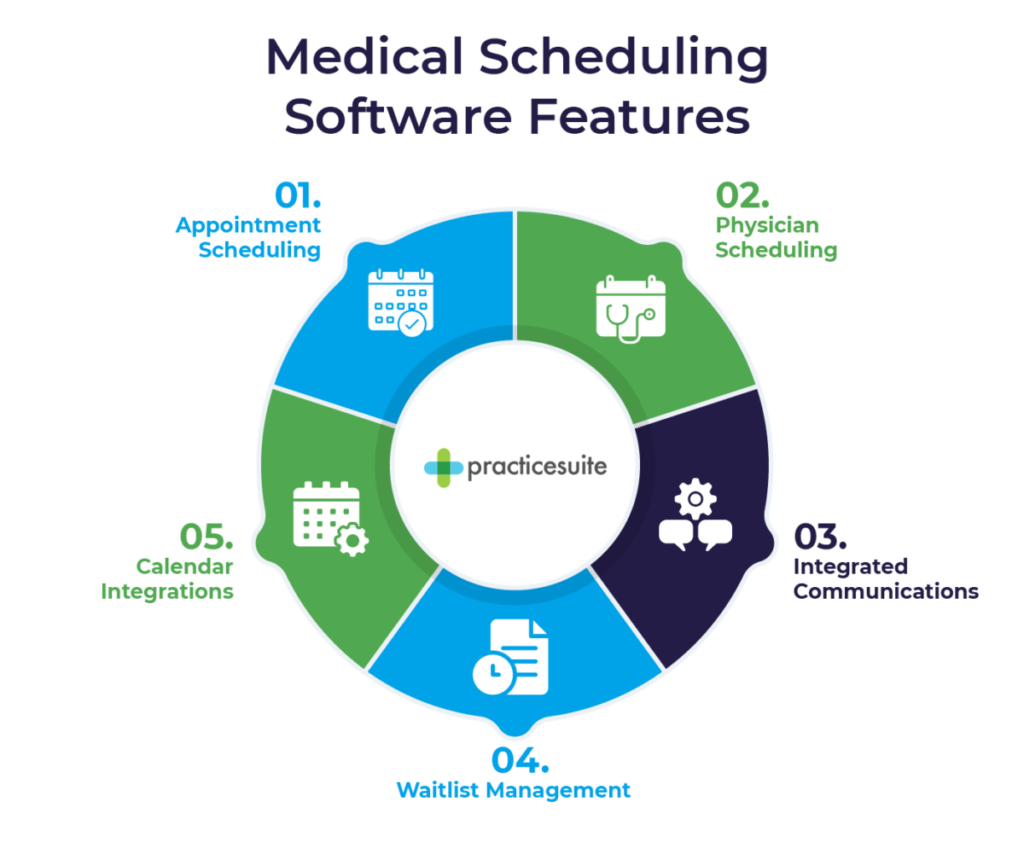
At its absolute core, a scheduling tool is a digital app designed to track, organize, and automate how you spend your hours.
Instead of relying on your memory or a messy paper notepad that gets lost under coffee cups, these apps hold your master timeline. You use them to set up appointments, block out deep-work periods, create automatic reminders, and let colleagues or clients see when you are available to chat.
                    THE OLD WAY vs. THE MODERN WAY

  THE OLD EMAIL PING-PONG                  THE SCHEDULING LINK

  "Are you free Tuesday at 2?"             "Here is my booking link:
               │                            select whatever 15-minute
               ▼                            slot works for your schedule."
  "No, got a call. 3:30?"                              │
               │                                       ▼
               ▼                           Done in 10 seconds.
  "Can't do 3:30. Wednesday?"              No emails. No confusion.
               │                           Calendar updated instantly.
               ▼
  "Wednesday morning works..."
  (Repeat until you lose your mind)
Think about how much mental energy gets completely wasted every single week just figuring out when two or three human beings can talk to each other:
- You send an email asking if someone has time to chat.
- They respond two hours later saying they are busy at that time, but free on Thursday afternoon.
- You check your calendar, realize you have a conflict on Thursday afternoon, and suggest Friday morning.
- By the time you finally agree on a time, five or six emails have flooded your inbox, and the original momentum of the project is dead.
Modern scheduling apps eliminate that friction entirely. You configure your available hours once, send out a clean booking link, let the other person select a open slot, and walk away. The app automatically creates a calendar event, generates a video call room, sends calendar invites to both parties, and even dispatches a gentle reminder notification thirty minutes before you start.
It is a small shift in how you operate, but across a full year, it easily reclaims dozens of hours of lost time.
Real-World Comparison: The 2026 Scheduling Landscape

Not all scheduling tools are built for the same job. A solo freelancer booking client strategy sessions needs something completely different from a corporate manager trying to find an open hour for eight department heads to meet.
Here is a straightforward, real-world comparison of the top platforms available today:
| Platform | Core Superpower | Real-World Setup Difficulty | Ideal Real-World User | The Annoying Catch |
|---|---|---|---|---|
| Google Calendar | Simple, reliable everyday time-blocking | Zero setup required | Everyone needing a simple personal baseline calendar | Lacks advanced custom client booking pages unless you pay for Google Workspace |
| Calendly | Effortless 1-on-1 external meeting booking | Very easy (10 minutes) | Freelancers, salespeople, recruiters, and consultants | Free plan restricts you to a single active event type |
| Motion | AI engine that automatically fits tasks around meetings | High (Takes trial and error) | Extremely busy professionals struggling to manage task lists | Expensive monthly subscription; can feel overly rigid if your day shifts unexpectedly |
| Microsoft Outlook | Complete integration with enterprise emails & teams | Easy (If your company uses MS) | Corporate employees and mid-to-large business teams | Interface can feel cluttered and heavy compared to modern lightweight alternatives |
| Doodle | Simple group polling to find consensus times | Very easy (5 minutes) | Organizing team dinners, board meetings, or multi-person calls | Free version is crammed full of intrusive advertisements |
| Acuity Scheduling | Powerful client booking with payments & intake forms | Moderate (Requires configuring services) | Service businesses, therapists, salons, and coaches | Overkill if you just want to schedule simple 15-minute check-ins |
| Notion Calendar | Merges your notes, project docs, and daily schedule | Moderate (Best if using Notion) | Content creators, founders, and digital builders | Requires you to be heavily invested in the broader Notion ecosystem to be useful |
Deep-Dive into the Top Scheduling Tools
┌───────────────────────────────────────────────────────────┐
│               THE 3 MAIN SCHEDULING PILLARS               │
├───────────────────────────────────────────────────────────┤
│ 1. TIME BLOCKING ──> Google Calendar / Notion Calendar    │
│ 2. EXTERNAL BOOKING ──> Calendly / Acuity Scheduling       │
│ 3. AUTOMATED PLANNING ──> Motion                          │
└───────────────────────────────────────────────────────────┘
1. Google Calendar (The Gold Standard for Daily Planning)
If you are looking for a reliable, no-nonsense baseline tool, Google Calendar remains almost impossible to beat. It is fast, completely free for personal use, and runs on literally every device on Earth.
- Where it shines: Master-level time blocking. Instead of writing a long, intimidating list of tasks on a sticky note and hoping you get to them, you drag and drop dedicated blocks directly onto your calendar grid.
- The practical routine: Block out 8:30 AM to 10:00 AM for “Deep Creative Work,” mark 12:00 PM to 1:00 PM for “Lunch & Walk,” and keep your afternoon open for communication. Seeing your day visually forces you to admit that you only have a few real working hours available.
- The drawback: It is primarily an internal organization tool. While Google has introduced basic booking appointments, it isn’t nearly as feature-rich as dedicated external booking software.
2. Calendly (The Friction Killer)
Calendly solved one specific problem exceptionally well: taking the painful back-and-forth email exchanges out of booking meetings.
- Where it shines: Complete control over your availability settings. You can set buffer times (e.g., automatically force a 15-minute break after every call so you aren’t rushing), limit the maximum number of meetings allowed per day, and prevent people from booking a slot with less than 24 hours’ notice.
- Who it is for: Anyone who routinely talks to people outside their immediate company—freelancers, agency owners, podcast hosts, job recruiters, and sales representatives.
3. Motion (The AI-Driven Assistant)
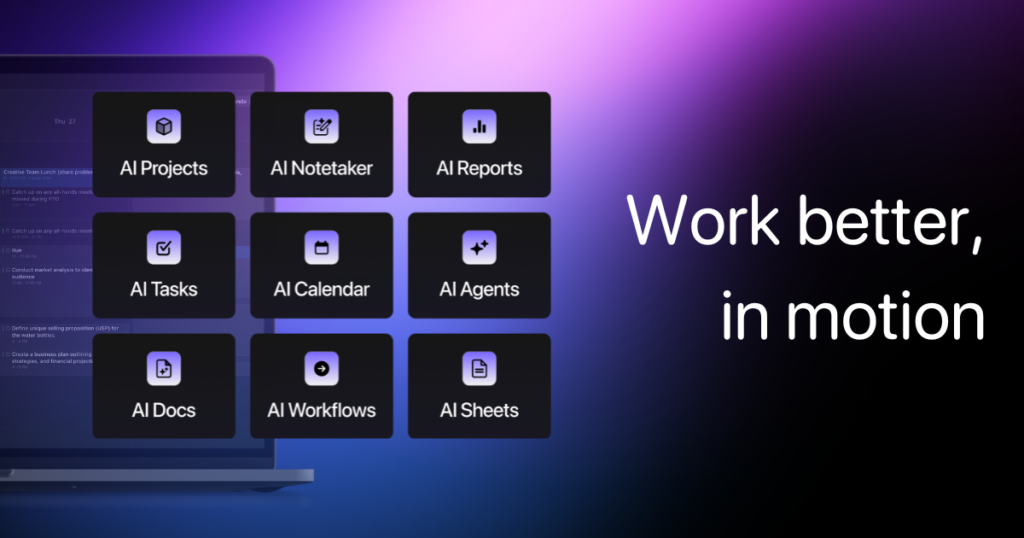
Motion treats your calendar like an active puzzle rather than a static piece of digital paper. It combines your to-do list with your calendar schedule using an intelligent algorithm.
- Where it shines: You feed Motion your tasks, tell it how long each task should take, set the strict deadline, and assign a priority level. Motion’s AI then inspects your open calendar windows and automatically schedules those tasks into your available time slots.
- What happens when life gets chaotic: If a surprise two-hour client emergency pops up at 11:00 AM and ruins your morning plan, Motion automatically reshuffles the rest of your week’s tasks to ensure your deadlines are still met without you having to drag blocks around manually.
- The catch: It commands a premium price tag and requires you to be completely disciplined about logging accurate task durations. If you estimate a 3-hour job takes 20 minutes, the algorithm will break down.
4. Microsoft Outlook Calendar (The Enterprise Workhorse)
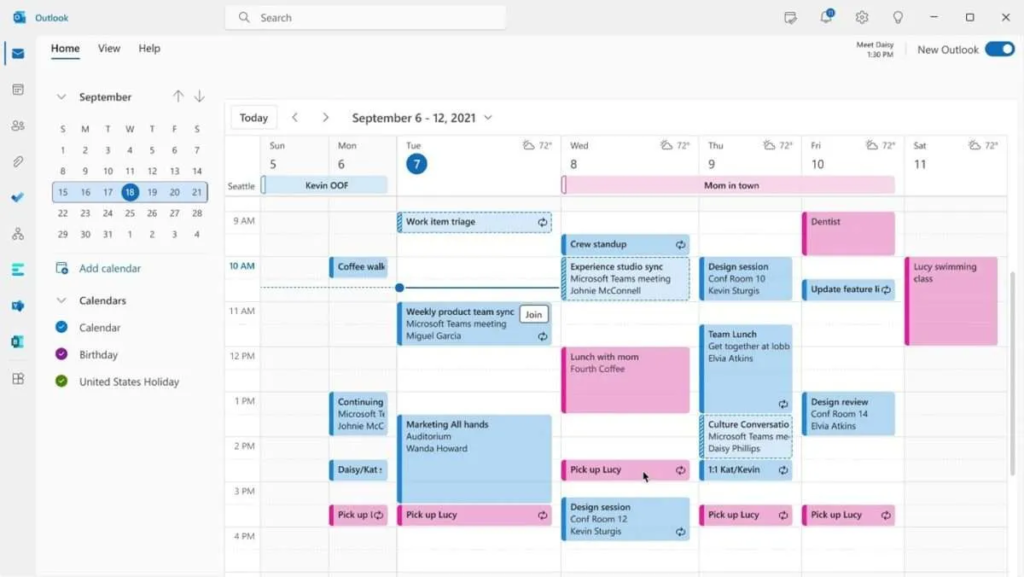
If you work inside a corporate environment, chances are high that Microsoft 365 is already forced upon you. Fortunately, Outlook’s calendar engine has evolved significantly over the years.
- Where it shines: Deep corporate integration. You can view your entire department’s availability side-by-side, find open conference rooms in specific office buildings, attach shared documents straight from OneDrive, and launch Microsoft Teams calls with a single click.
- The catch: The interface can feel overly formal, heavy, and cluttered if you are just a solo creator trying to keep track of basic personal goals.
5. Doodle (The Group Consensus Finder)
Trying to find a time for two people to meet is annoying. Trying to coordinate a call for seven busy people with completely different working hours, time zones, and personal lives is an absolute nightmare.
                        DOODLE GROUP POLLING IN ACTION

  "When should we hold the Q3 Strategy Meeting?"

  Participants    │ Tuesday 10am │ Wednesday 2pm │ Thursday 11am
  ────────────────┼──────────────┼───────────────┼───────────────
  Sarah (Lead)    │      YES     │       YES     │       NO
  Marcus (Dev)    │      NO      │       YES     │       YES
  Elena (Design)  │      YES     │       YES     │       YES
  David (Sales)   │      NO      │       YES     │       NO
  ────────────────┼──────────────┼───────────────┼───────────────
  RESULT          │   2 Votes    │ 4 Votes (WIN) │    2 Votes
- Where it shines: Instead of guessing, you create a quick Doodle poll offering four potential meeting windows. You send one link out to all seven participants. Everyone ticks off the slots that work for them, and Doodle visually highlights the winning slot where everyone is free.
- Who it is for: Event organizers, board directors, academic teams, and large project groups.
6. Acuity Scheduling (The Service Business Engine)
If booking a meeting for you also involves collecting client intake forms, verifying details, or processing credit card payments up front, basic calendar apps won’t cut it.
- Where it shines: It is a full-blown front-desk service manager. Clients can pick a service (like a 60-minute massage or a 30-minute legal consultation), fill out required health or intake questions, pay for the session via Stripe or PayPal, and receive automatic SMS confirmations—all without you lifting a finger.
- Who it is for: Fitness coaches, consultants, photography studios, barbershops, and health professionals.
The Golden Rules of Realistic Time Management

You can download the most expensive, AI-powered scheduling platform on the market, but if your day-to-day approach to planning is flawed, you will still end up overwhelmed.
Here are four golden rules for building a schedule that actually works in the real world:
Rule 1: Build In “Buffer Time” (The Breathing Room Factor)
The single biggest mistake people make when organizing their calendar is scheduling events back-to-back.
  THE BURNOUT SCHEDULE (No Buffers)
  ┌──────────┬──────────┬──────────┬──────────┐
  │ Call 1   │ Call 2   │ Call 3   │ Call 4   │  <-- One delay ruins everything
  └──────────┴──────────┴──────────┴──────────┘
  09:00      10:00      11:00      12:00

  THE SUSTAINABLE SCHEDULE (15-Min Buffers)
  ┌──────────┐  ┌──────────┐  ┌──────────┐
  │ Call 1   │  │ Call 2   │  │ Call 3   │      <-- Time to grab water, take
  └──────────┘  └──────────┘  └──────────┘          notes, and clear your head
  09:00      09:45      10:30      11:15
If you have a meeting from 10:00 to 11:00 and another starting precisely at 11:00, you are setting yourself up for failure. The first call will inevitably run five minutes over, you won’t have time to use the restroom or grab water, you won’t write down your action notes from the first call, and you will arrive at the second call feeling stressed and distracted.
- The Fix: Configure your scheduling app to cap 30-minute meetings at 25 minutes, and 60-minute meetings at 45 minutes. Treat those extra 15 minutes as sacred buffer time to decompress, take notes, and transition mentally.
Rule 2: Respect Your Peak Energy Windows
Not all working hours are created equal. Most human beings have a specific 2-to-3-hour window each day where their brain operates at absolute peak clarity (for many, it is between 8:30 AM and 11:30 AM).
- The Fix: Protect your peak energy windows fiercely. Block that time off on your calendar as recurring “Focus Work” and block external people from booking calls during it. Push low-energy, routine administrative tasks—like answering basic emails, filling out expense reports, or joining casual status updates—into your afternoon energy slump.
Rule 3: Stop Treating Every Discussion Like a 30-Minute Meeting
Somewhere along the line, corporate culture decided that the default unit of human conversation is 30 minutes.
It isn’t.
┌───────────────────────────────────────────────────────────┐
│               THE COMMUNICATION DECISION TREE             │
├───────────────────────────────────────────────────────────┤
│ CAN IT BE ANSWERED IN 2 SENTENCES? ──► Send a Chat Message│
│ DOES IT REQUIRE A QUICK DECISION?  ──► 5-Minute Voice Note│
│ IS IT A COMPLEX BRAINSTORMING TOPIC?──► 15-Minute Meeting │
└───────────────────────────────────────────────────────────┘
Before you drop a calendar invite onto someone’s schedule, ask yourself the honest question: “Could this issue be resolved with a clear two-paragraph chat message or a quick 3-minute voice note?” If the answer is yes, skip the meeting entirely. You will save both yourself and your colleagues an enormous amount of time.
How to Set Up Your Minimalist System Today

If you feel completely overwhelmed by options, keep it ridiculously simple. You do not need five different subscriptions.
Here is a simple, three-step blueprint you can execute in less than twenty minutes:
- Pick One Master Calendar: Use Google Calendar (or Microsoft Outlook if forced by work). Make sure every single event—both work meetings and personal appointments like doctor visits or gym sessions—lives on this single grid so you never accidentally double-book yourself.
- Set Up One External Booking Tool: If you deal with clients or outside partners, sign up for a free Calendly account. Connect it to your master calendar, configure your working hours (e.g., Monday through Thursday, 1:00 PM to 4:00 PM), and grab your personal booking link.
- Establish a 5-Minute Shutdown Routine: At the end of every workday, open your master calendar and review tomorrow’s schedule. Adjust your time blocks based on what actually got finished today. When you wake up the next morning, you won’t waste thirty minutes figuring out where to start—you just open your calendar and execute the plan.
- Urban Living Tools That Simplify Your Daily Life

- Top Online Health Tools for Better Health and Fitness

- Simple Life Hacks That Save Time, Money, and Effort

- Simple Life Hacks to Save Time, Money and Energy

- Best Urban Living Tools 2026: Smart City Life Made Easy

Frequently Asked Questions
1. What is the single best scheduling tool for a solo freelancer?
A combination of Google Calendar for your personal time-blocking and Calendly for letting clients book consultation calls. Both offer generous free tiers that cover everything a solo business owner needs without adding monthly overhead.
2. How do I stop colleagues from booking meetings over my lunch break?
Set a recurring, private event on your primary calendar every day from 12:00 PM to 1:00 PM titled “Busy” or “Lunch Block.” Most modern scheduling tools will automatically read that block as unavailable time and block external people from choosing those slots.
3. Is paying for an AI scheduling tool like Motion actually worth the money?
It is only worth it if you manage a high volume of constantly shifting daily tasks and complex deadlines alongside a heavy meeting schedule. If your day consists of mostly routine work and 2 or 3 static calls, a free calendar app is more than enough.
4. How can I prevent people from booking last-minute meetings on my calendar?
Inside your scheduling app’s availability settings, look for the setting called “Minimum Scheduling Notice.” Set this parameter to 24 hours. This prevents anyone from dropping a surprise meeting onto your calendar with only an hour’s notice.